

Understanding Security Flags
Learn about security flags and the Lethal Trifecta.
Edison Watch uses three flags to track risk in AI sessions.
Security Flags
📘 Private Data Access
Triggered by: Reading files, querying databases, or accessing internal documents. Risk: Sensitive information could be exposed.
🌐 Untrusted Content Exposure
Triggered by: Fetching web pages or calling external APIs. Risk: The AI could receive malicious instructions (prompt injection).
✉️ External Communication
Triggered by: Sending emails, posting to Slack, or making external API calls. Risk: Confidential data could be exfiltrated.
The Lethal Trifecta
The "Lethal Trifecta" occurs when a session has all three flags active:
| Status | Meaning |
|---|---|
| ✓ Private Data | AI has seen confidential info. |
| ✓ Untrusted Content | AI may have received malicious instructions. |
| ⏳ External Communication | AI is attempting to send data externally. |
Protection: Edison Watch automatically pauses any action that completes this trifecta, requiring your manual approval to proceed.
Viewing Flags in the Dashboard
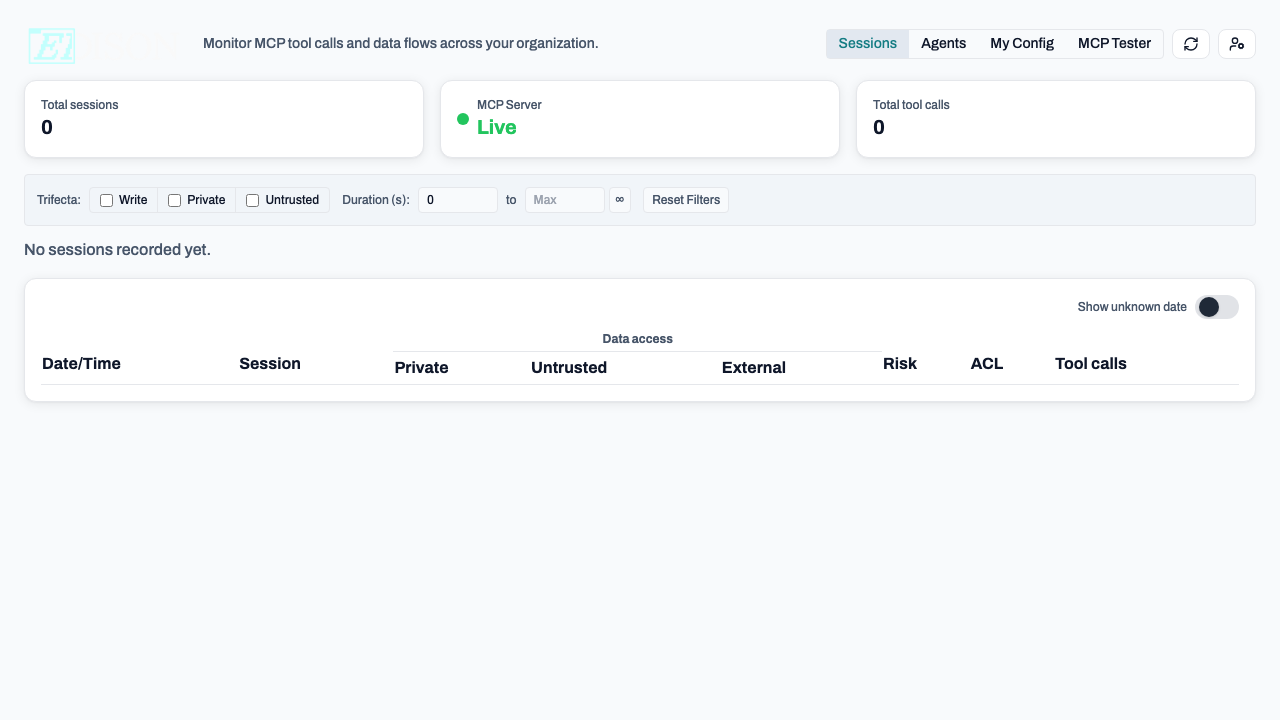
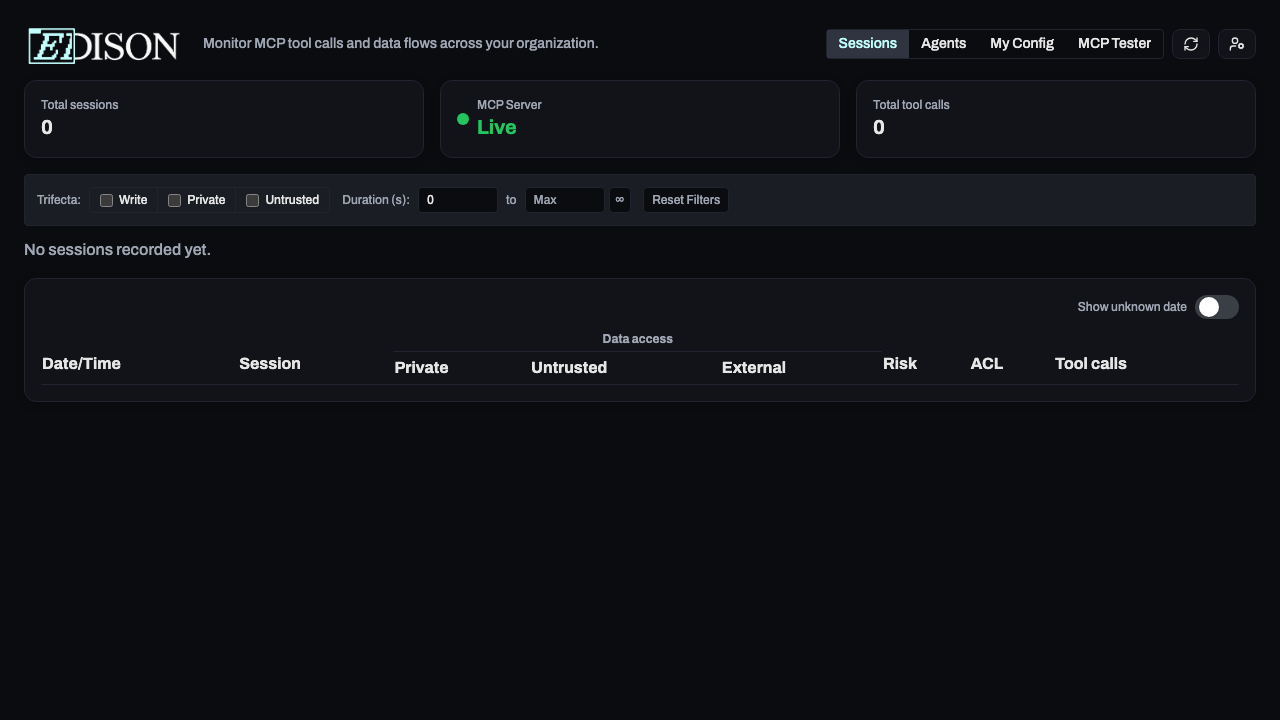
The Sessions view uses colored dots to show active flags:
- 🔵 Blue: Private Data Access
- 🟡 Amber: Untrusted Content Exposure
- 🔴 Red: External Communication
Risk Levels
- Low (green): 0 flags
- Medium (amber): 1 flag
- High (red): 2+ flags
ACL Levels
Access Control Levels (ACL) provide additional protection:
| Level | Meaning |
|---|---|
| PUBLIC | Non-sensitive data. |
| PRIVATE | Internal/confidential data. |
| SECRET | Highly sensitive data. |
Enforcement: Edison Watch automatically blocks high-to-low data flows (e.g., reading SECRET data then posting to a PUBLIC channel). These blocks do not ask for approval—they are prevented by default.
For Admins: You can classify tools and set ACL levels in the Servers configuration.