

Managing Users
View users, assign roles, and manage API keys.
Admins can monitor all organization users and manage their access levels.
User Roles
| Role | Permissions |
|---|---|
| User | Use AI tools, approve own actions, and view own activity. |
| Admin | Manage API keys, configure servers, and view all organization activity. |
| Owner | All Admin powers plus ownership transfer and organization-wide promotion/demotion. |
Organizations have exactly one Owner. Ownership can be transferred to any other user.
User Creation
Users are created automatically upon their first successful authentication. There is no manual invite process.
Managing API Keys
Each user can have multiple API keys. From the Users page, select a user to manage their keys:
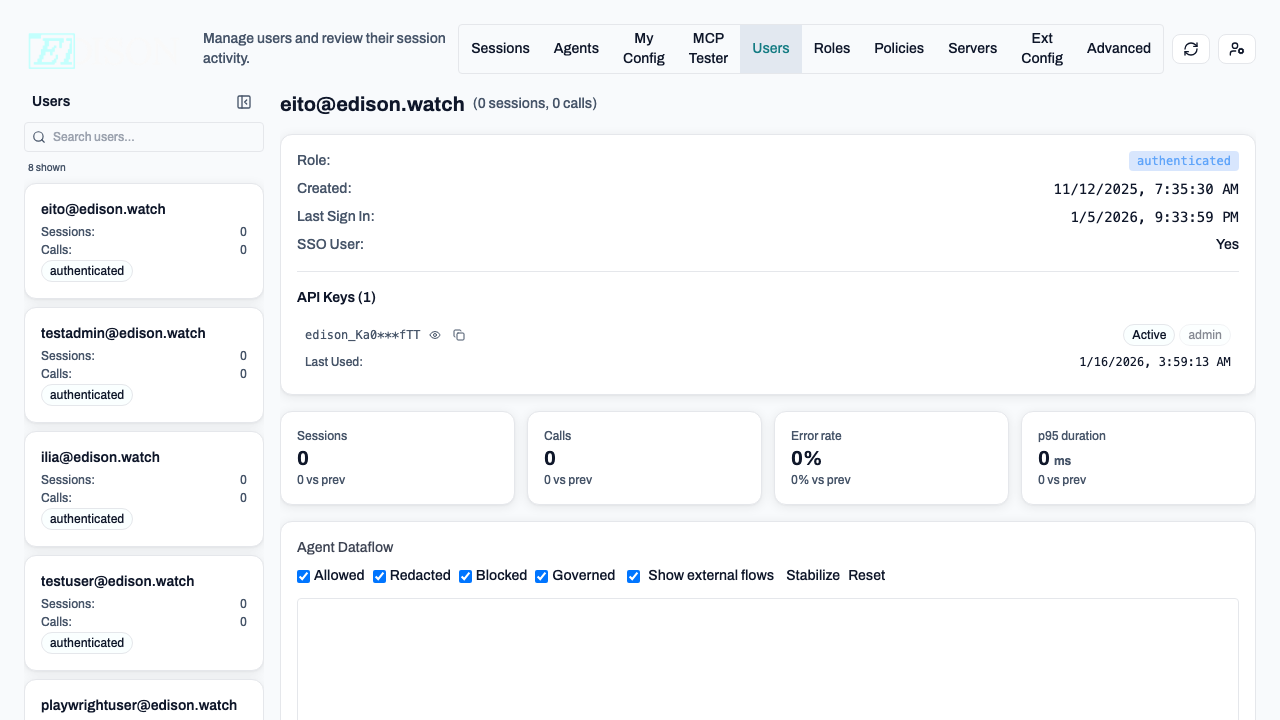
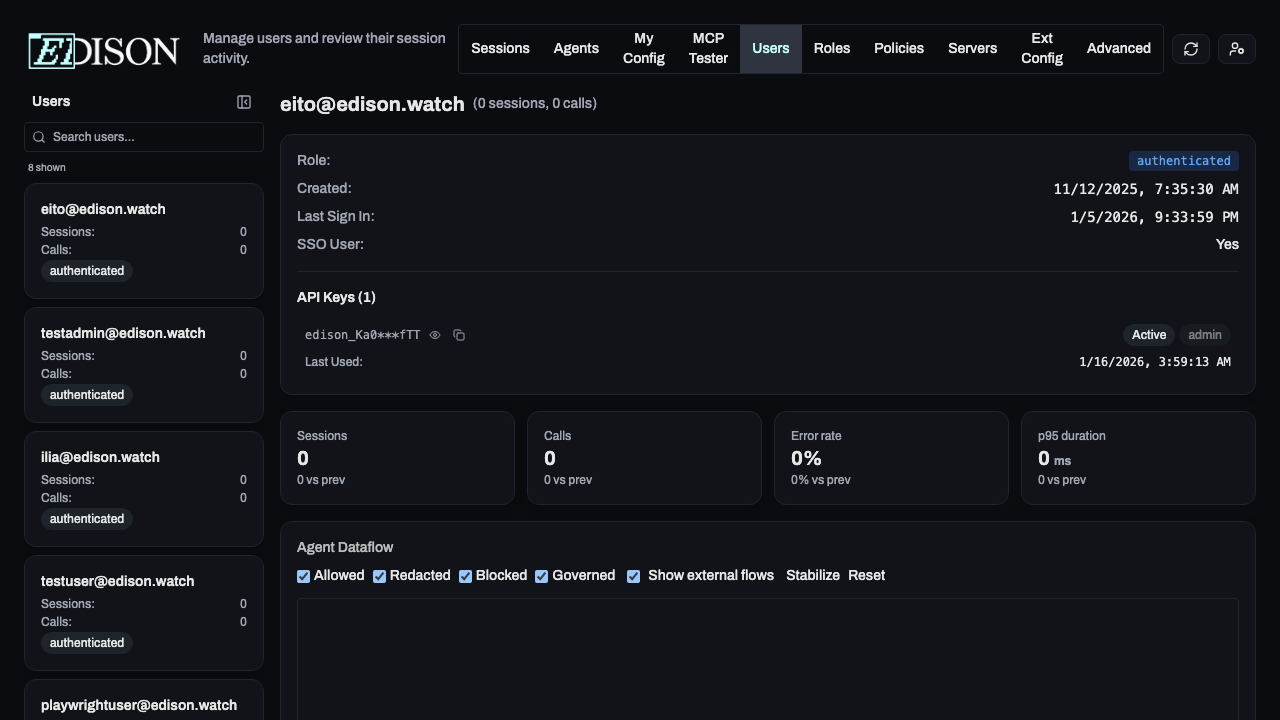
- Visibility: Click the eye icon to reveal a key.
- Status: Toggle Active/Inactive to enable or revoke access.
- Roles: Change the role associated with a specific key.
You cannot deactivate your own currently-active API key.
Transferring Ownership
If you are the current Owner:
- Select the target user in the sidebar.
- Click Transfer Ownership next to their role.
- Confirm the action.
Result: The target user becomes the Owner, and you are demoted to Admin. This action is permanent and can only be reversed by the new Owner.
Reviewing User Activity
Select a user to view their specific metrics:
- KPIs: Quick summary of their usage.
- Dataflow: Visual map of their AI activity.
- Sessions: Complete history of their AI tool usage.
SSO Integration: For automatic provisioning via SAML/SSO, see the Deployment guide.