

Installation
Install the Edison Watch client app on your computer.
Edison Watch installs in minutes. Follow the steps for your operating system.
1. Download the App
- Sign in to edison.watch with your work account.
- Click Download in the top menu.
- Select your OS (macOS, Windows, or Linux).
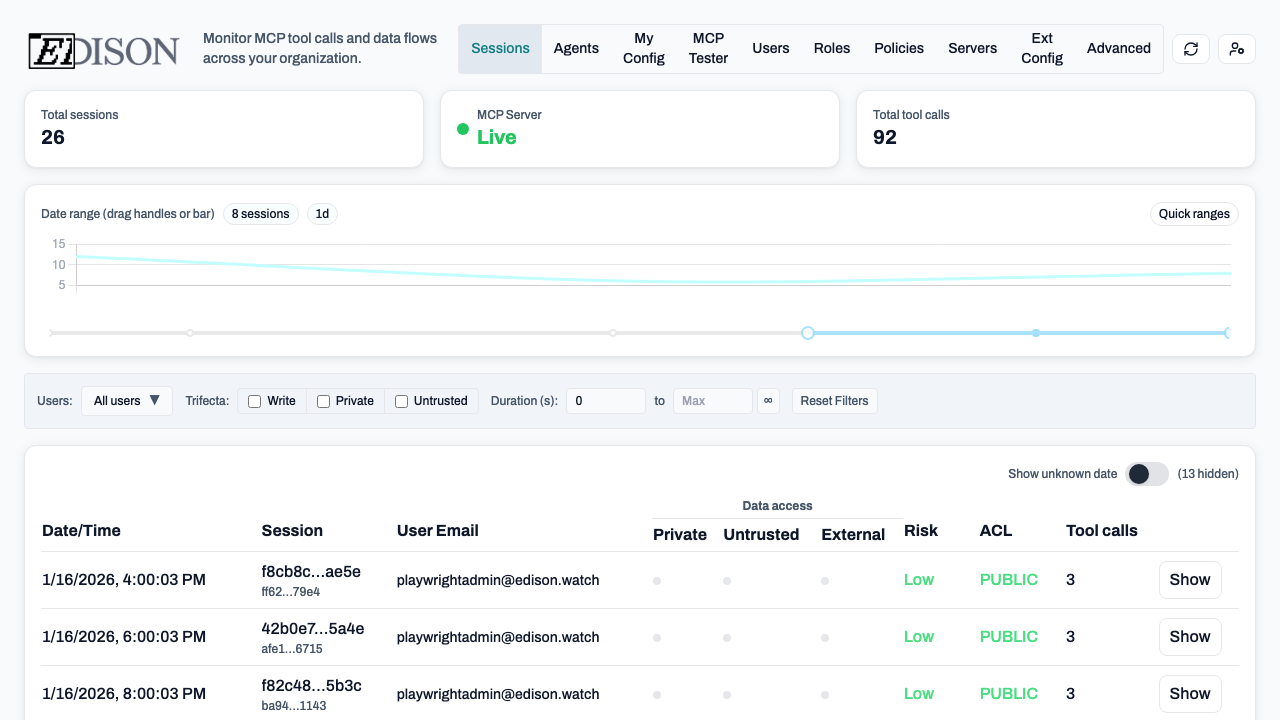
2. Install
macOS
- Open the
.dmgfile. - Drag Edison Watch to your Applications folder.
- Open the app from Applications.
If macOS shows a security warning, click Open. If blocked, go to System Settings → Privacy & Security and click Open Anyway.
Windows
- Run the
.exeinstaller. - Follow the setup wizard.
- Edison Watch starts automatically after installation.
Linux
- Download the
.AppImageor.debpackage. - AppImage: Run
chmod +xand execute. - .deb: Run
sudo dpkg -i edison-watch.deb.
3. Sign In
- Click Sign In when the app opens.
- Enter your work email.
- Complete the sign-in in your browser.
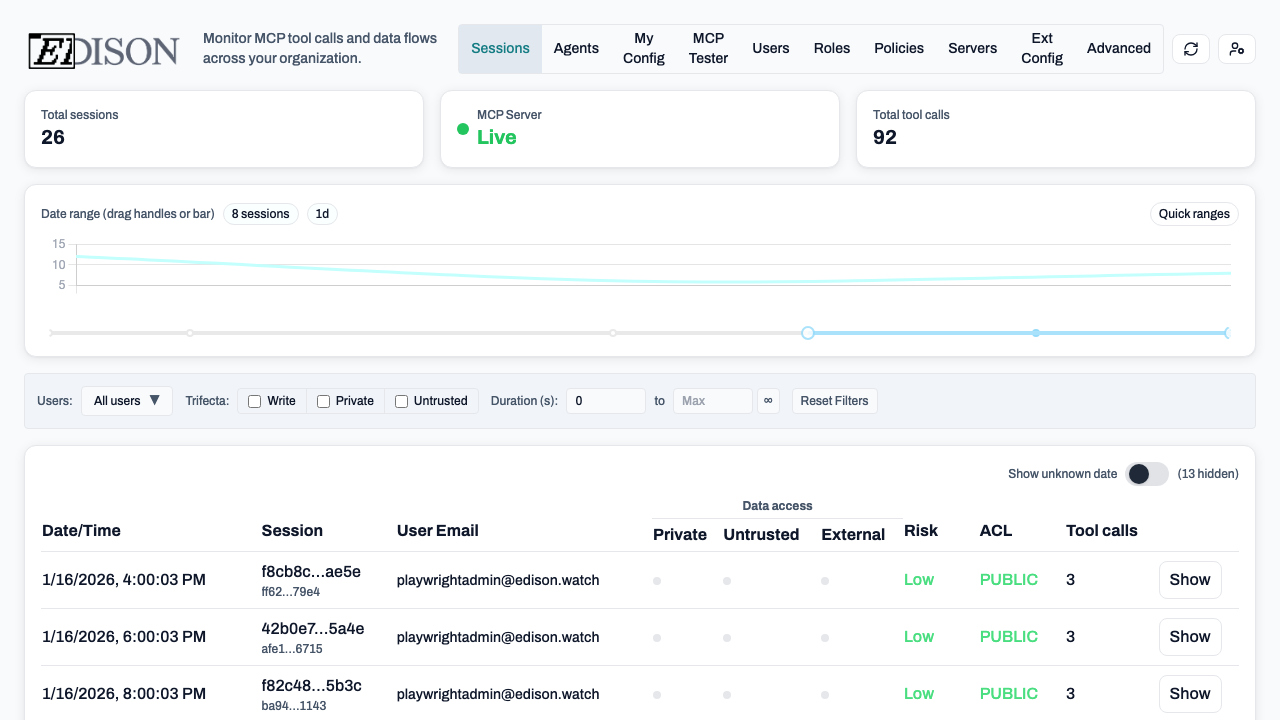
You're protected. Look for the Edison Watch icon in your menu bar (macOS) or system tray (Windows).
Next Step
Connecting AI Tools
Connect Cursor, VS Code, and Claude Code to begin.