

Approving Actions
Understand when and how to safely approve AI actions.
Edison Watch pauses risky AI actions and asks for your approval before they proceed.
When Is Approval Required?
Approval is triggered by the Lethal Trifecta:
- Private Data: Your AI read sensitive files or documents.
- Untrusted Content: Your AI fetched data from the internet.
- Write Operation: Your AI is trying to send data externally (e.g., email or Slack).
This combination could allow a malicious prompt to exfiltrate your data. Edison Watch pauses to let you verify the action.
The Approval Dialog
When a request is pending, you'll see a dialog with these details:
| Field | Meaning |
|---|---|
| Tool | The type of action (tool, resource, or prompt). |
| Name | The specific tool being used. |
| Session | The AI session making the request. |
| Reason | Why this action requires review. |
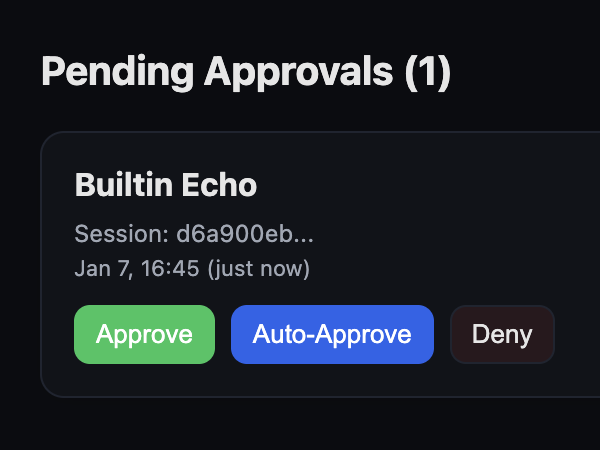
Your Options
✅ Approve
Click if you recognize the action and it matches what you asked the AI to do. This approves the action once.
🔄 Auto-Approve
Click to approve the current action and automatically allow similar future actions. Use this for trusted, repetitive tasks.
❌ Deny
Click if the action looks suspicious or you didn't request it.
When in doubt, deny. You can always ask your AI to try again with clearer instructions.
Examples
Safe to Approve ✅
- You asked: "Summarize these notes and email them to my team."
- Edison shows:
Tool: send_email - Result: Safe—it's what you requested.
Deny This ❌
- You asked: "What's the weather today?"
- Edison shows:
Tool: send_email - Result: Suspicious—the AI shouldn't be sending email for this task.
Bulk Actions
If multiple approvals are pending, you can Approve All or Deny All. Review each item before using bulk approvals.
Unsure? Contact your IT or security team for guidance on specific approval requests.