

Access Control
Manage roles and fine-grained permissions for MCP servers and tools.
The Access Control page lets admins define roles, assign users to those roles, and configure exactly which MCP servers and tools each role can access.
Tabs
| Tab | Description |
|---|---|
| Roles | Create and manage role definitions; assign users to roles. |
| Permissions | Configure server-level and element-level access per role. |
Roles Tab
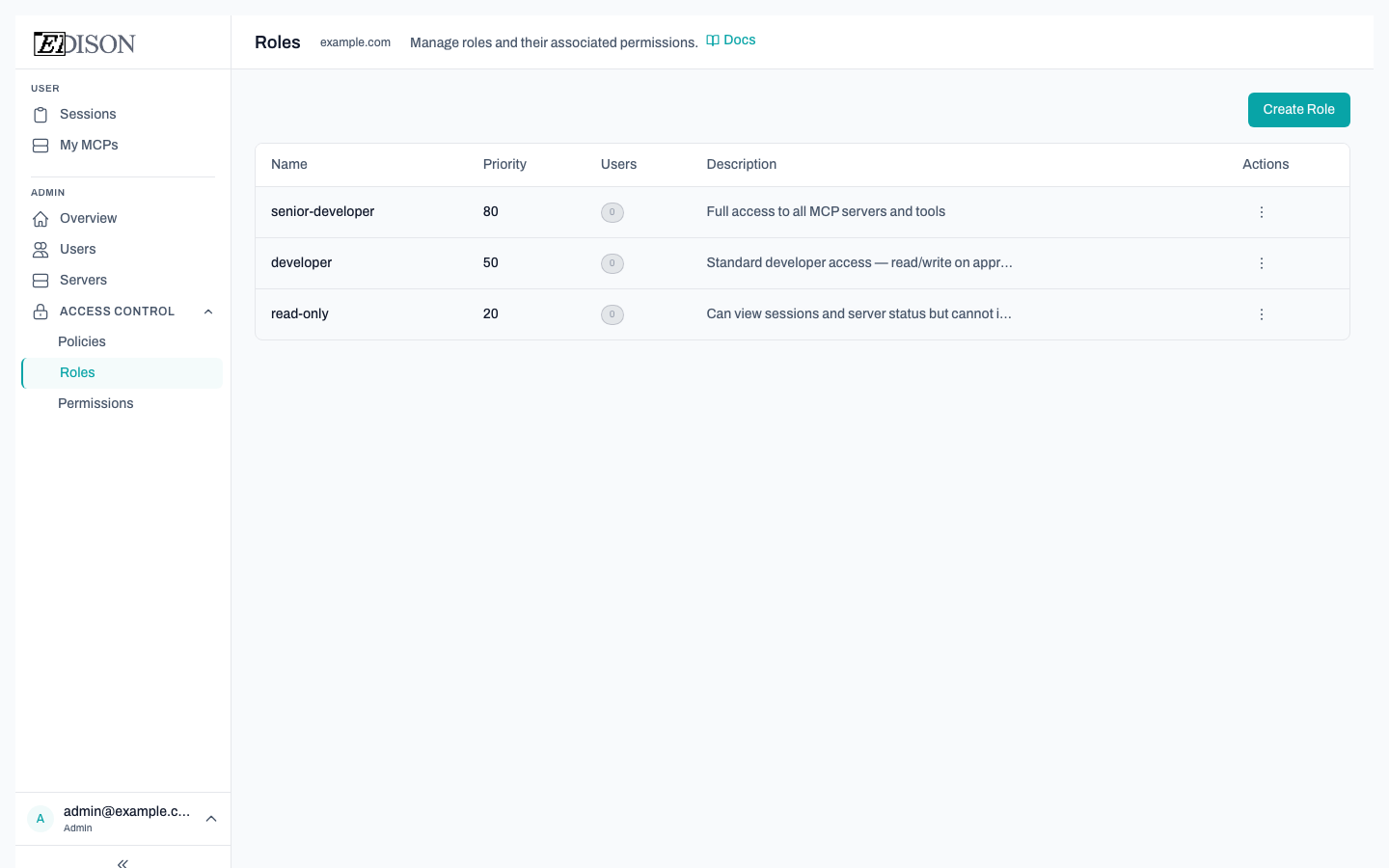
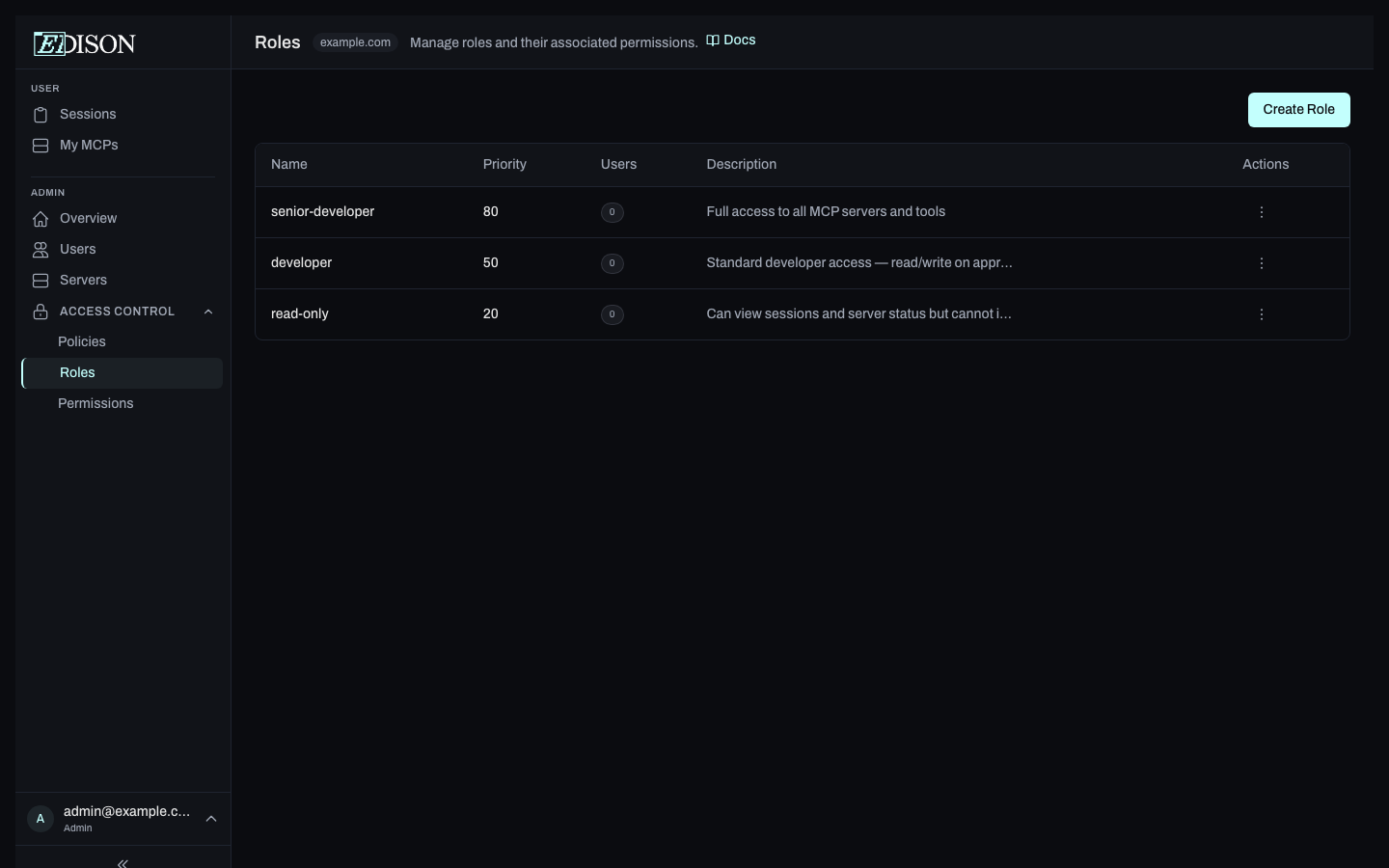
Role Definitions
A role is a named group with a priority. Higher-priority roles take precedence when a user belongs to multiple roles and those roles have conflicting permissions.
The roles table shows:
| Column | Description |
|---|---|
| Role | The role's unique name. |
| Priority | Numeric priority (higher = evaluated first). |
| Description | Optional human-readable description. |
| Members | Number of users currently assigned to this role. |
Creating a Role
Click Create Role and fill in:
- Role name - Alphanumeric, hyphens, and underscores only (e.g.
senior-developer). - Priority - Integer, default
0. - Description - Optional.
Assigning Users
Click a role row to open the assignment panel. Use the Add User dropdown to add users to the role, or click the × next to a member to remove them.
Permissions Tab
Server Access
Control which servers are enabled or disabled at three levels:
| Level | Scope |
|---|---|
| Global | Applies to all users regardless of role. |
| Role | Applies to users in a specific role. |
| User | Applies to a single user, overriding role-level settings. |
More specific levels take precedence: user > role > global.
Element Access
Elements are the individual tools, resources, and prompts exposed by an MCP server. Each element has an enable/disable toggle plus the three trifecta classification flags that feed the Lethal Trifecta detector:
| Flag | Meaning |
|---|---|
Private (read_private_data) | Element accesses private or sensitive user data. |
Untrusted (read_untrusted_public_data) | Element reads data from untrusted or public sources that could contain prompt injections. |
External (write_operation) | Element can send data externally or perform write operations with side effects. |
Flags can be set at the Global, Role, or User level - more specific scopes inherit from broader ones until explicitly overridden. Element-level settings are resolved after server-level access: a server must be enabled for its elements to be reachable.
Access control settings are cached in-memory by Edison Watch for performance. If you change a role assignment or permission and don't see the effect immediately, allow a few seconds for the cache to refresh on the next tool call.