

Daily Usage
Working with Edison Watch day-to-day.
Edison Watch runs in the background to protect your AI workflows.
The Menu Bar Icon
Click the icon in your menu bar (macOS) or system tray (Windows) to manage the app.
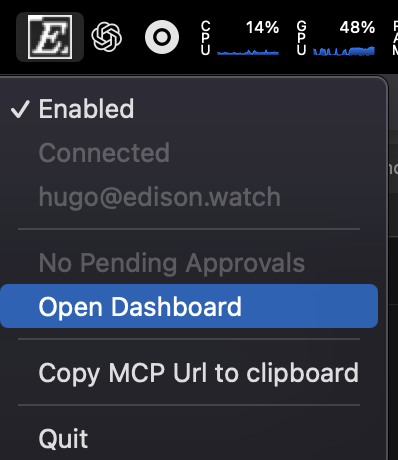
| Option | Function |
|---|---|
| Enabled | Toggle protection on/off |
| Connected | Server connection status |
| Pending Approvals | Actions waiting for your decision |
| Open Dashboard | View your full activity history |
| Copy MCP URL | Copy URL for manual setup |
Security Flags
Edison Watch tracks three types of activity in your AI sessions:
| Flag | Meaning |
|---|---|
| Private Data | AI read sensitive internal files or documents |
| Untrusted Data | AI fetched content from the internet |
| Write Operations | AI attempted to send or modify data |
The Trifecta: When an AI has seen private data AND fetched external content, Edison Watch requires approval for any write operations to prevent data leaks.
Handling Approvals
When an AI action is risky, you'll receive a desktop notification.
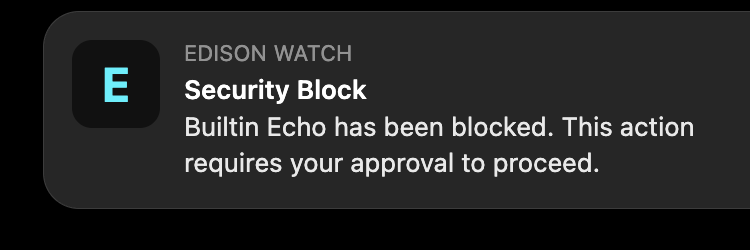
- Click the notification to see the action details.
- Review the request: What is the AI trying to do, and why?
- Decide: Choose Approve, Auto-Approve (for recurring tasks), or Deny.
See Approving Actions for details.
Staying Protected
- Keep the app running: It starts automatically with your computer.
- Respond to notifications: Your AI is paused until you decide.
- Check status: A green indicator means you're connected and protected.
Next Step
Approving Actions
Learn how to make safe approval decisions.