

Getting Started
Connect your AI agents to Edison Watch in minutes.
1. Sign Up at dashboard.edison.watch
Go to dashboard.edison.watch and create an account. Edison Watch is a self-serve product - sign up with your work email and your organization is created automatically.
After signing up, your account enters a short approval queue. You'll receive an email once your organization is activated.
2. Sign In and Follow the Onboarding Checklist
Once approved, sign in to your dashboard. An onboarding checklist appears automatically to guide you through setup:
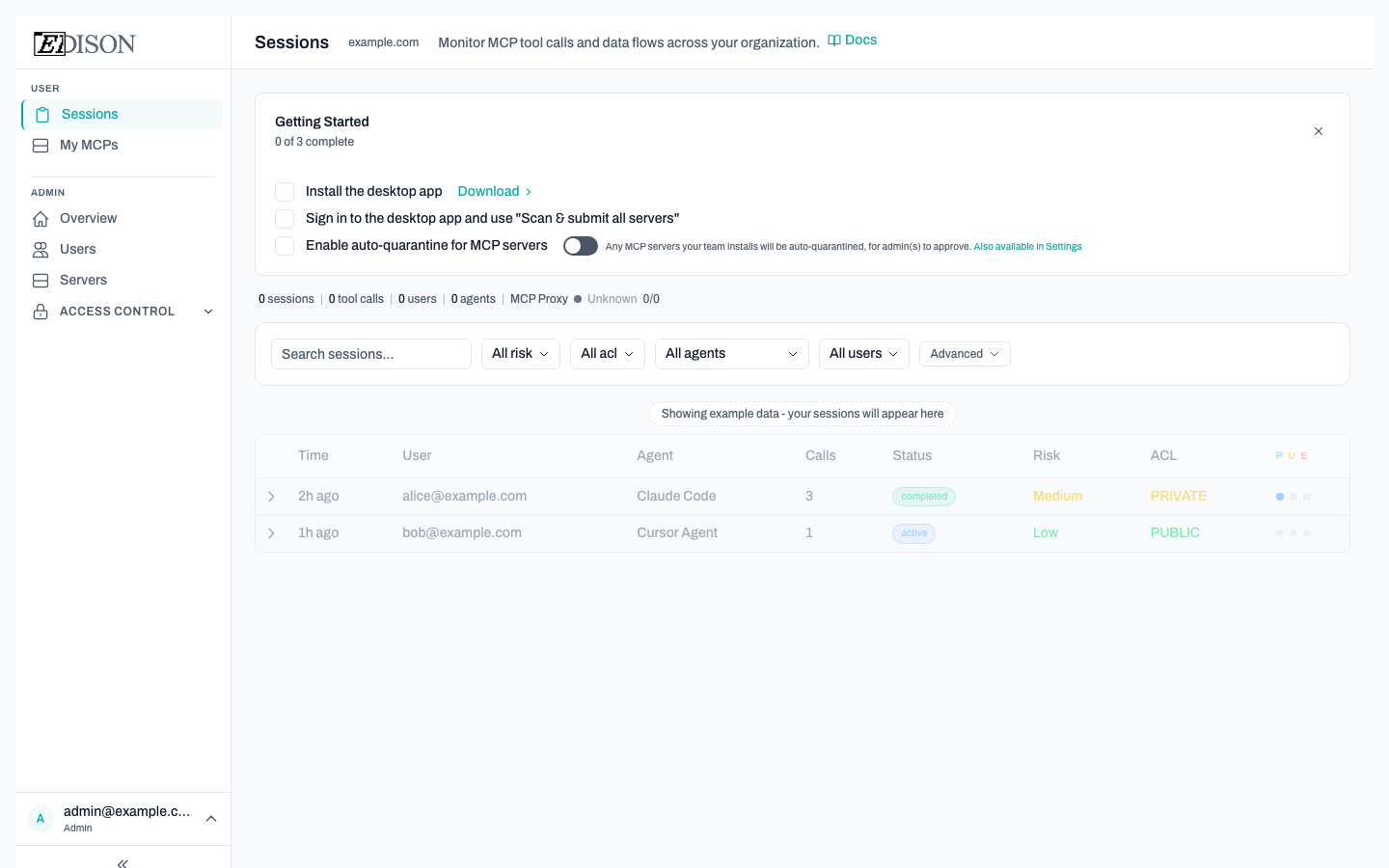
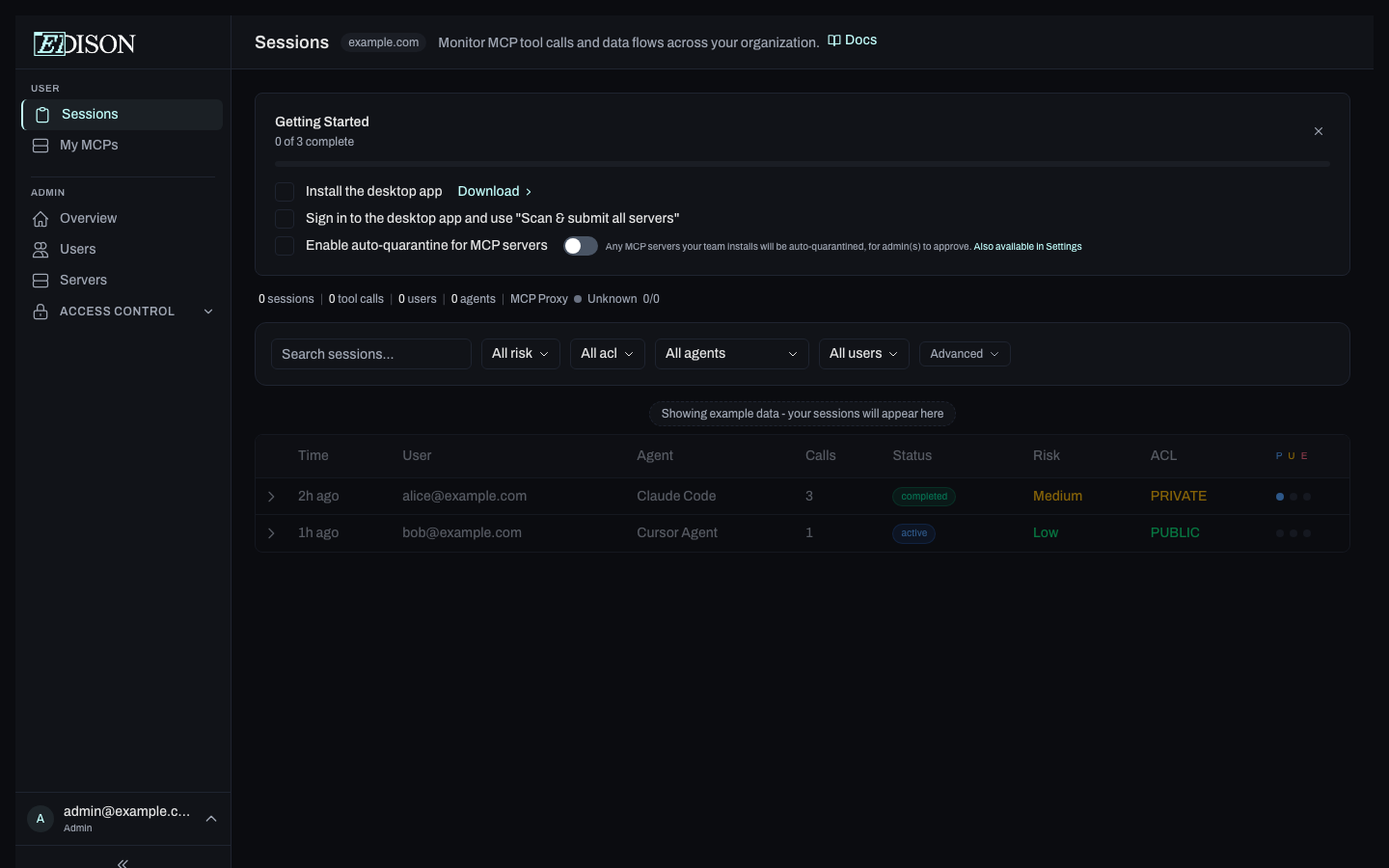
| Step | Who | What to do |
|---|---|---|
| Install and sign in to the desktop app | Everyone | Download the Edison Watch client app, sign in, and (as an admin) use "Scan & submit all servers" to discover MCP servers on your machine. |
| Test Edison's security with the Demo Trifecta Server | Admins | Open the pre-installed Demo Trifecta Server from My MCPs and run the provided prompt to see Lethal Trifecta enforcement in action. |
| Enable auto-quarantine for MCP servers | Admins | Turn on auto-quarantine so newly detected MCP servers are held for admin review before use. See MCP Quarantine. |
Find more MCP servers on smithery.ai or glama.ai.
3. Work Protected
Edison Watch runs in the background from here:
- Monitoring - every tool call is logged with full context.
- Blocking - ACL violations are prevented automatically.
- Approvals - risky or policy-matched actions pause for review.