

MCP Quarantine
Automatically hold newly detected MCP servers on user devices until an admin has reviewed them.
MCP Quarantine is an admin-controlled feature that holds newly detected MCP servers on user machines until an admin has reviewed them. Without it, any MCP server a user adds to their AI client runs immediately as a shadow MCP - invisible to the organization and a potential source of data leaks.
Admins decide whether to turn quarantine on, and can enable or disable it at any time from Settings.
How It Works
- The Edison Watch desktop app watches the MCP config files of every supported AI client.
- When an unrecognized server appears, the app rewrites the config to disable it locally.
- A dialog notifies the user:
- Admins see Add to Edison and Skip for Now.
- Regular users see Request Approval and Skip for Now. If several servers are pending, bulk Add All / Request All / Skip All buttons appear.
- Pending requests show up on the admin Overview page for review.
- On Approve, the server is allowed on the next discovery cycle. On Reject, it stays disabled and the user can re-request later. After Skip for Now, the user isn't prompted again unless the server's fingerprint changes.

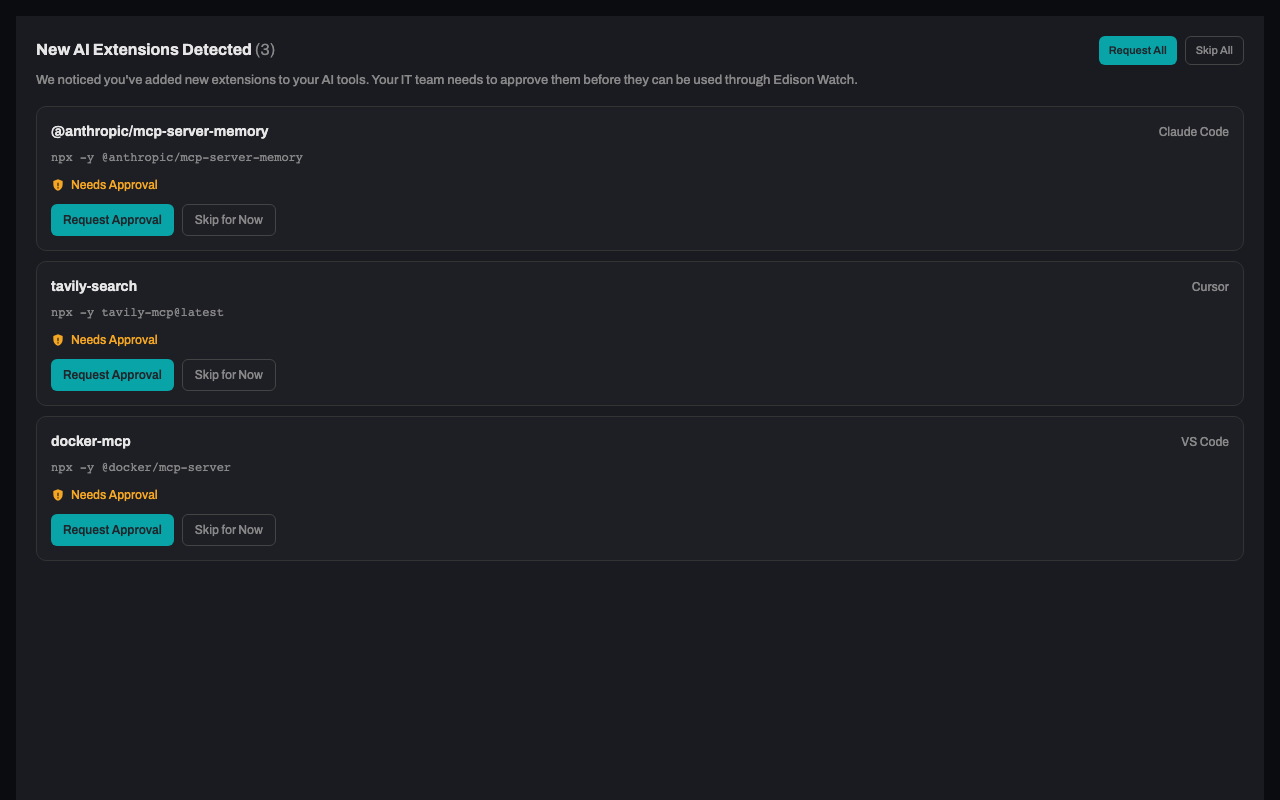
Previously-approved servers are quarantined silently (no dialog) - only genuinely new servers prompt for review.
Supported AI Clients
Stable (covered by end-to-end tests):
- Claude Code
- Cursor (including Cursor plugins)
- VS Code
- Codex CLI
Beta (supported, but with less coverage - please report issues):
- Claude Desktop
- Claude Cowork
- Windsurf
- Zed
- JetBrains IDEs (IntelliJ, PyCharm, WebStorm)
Enabling Auto-Quarantine
Auto-quarantine is an org-level setting controlled by admins. It defaults to off for new organizations.
- From the onboarding checklist. New admins see an Enable auto-quarantine for MCP servers step on first sign-in.
- From settings. Go to Settings → General → MCP Auto-Quarantine. Toggling it syncs immediately to every desktop client in the org.
Reviewing Quarantine Requests
Pending quarantine requests appear on the admin Overview page under Quarantine Requests. Each row shows the server name, source app (Cursor, Claude Code, etc.), requester email, submission time, and any justification the user provided.
Three actions per request:
- Approve - Adds the server to the org. If a server with the same name already exists, you'll be prompted to resolve the conflict.
- Reject - The user can submit another request later.
- Verify - Probes the server's tool list so you can see what you're approving.
Disabling Auto-Quarantine
Flipping the setting to off stops new servers from being quarantined going forward, but previously quarantined servers stay disabled until an admin approves them or the user removes them manually.
With auto-quarantine off, any MCP server added to a user's AI client - whether by the user or by a prompt-injected instruction - runs as a shadow MCP with no admin visibility.
Limitations
Desktop app must be running. Quarantine is enforced by the Edison Watch desktop app. If the app is not running, no monitoring happens on that machine - any MCP server added to an AI client while the app is closed will start running normally until the app next launches and catches up. We are actively developing a background daemon that keeps auto-quarantine running even when the desktop app window is closed or hasn't been launched yet, closing this gap.
Non-MCP plugins are out of scope. Some extensions in clients like Claude Code and Cursor aren't MCP servers - they're installation scripts or native plugins that don't go through the MCP protocol. Edison Watch can only see and quarantine things declared as MCP servers, so these other plugin types are outside its scope.