

Policy Rules
Create and manage CEL-based policy rules that control AI tool behavior.
Policies are rules that Edison Watch evaluates against every AI tool call in real time. They can block actions, tag sessions, set access-control levels, and more - all without changing AI tool configuration.
The Policies View
Go to Policies in the sidebar. The page is split into two panels:
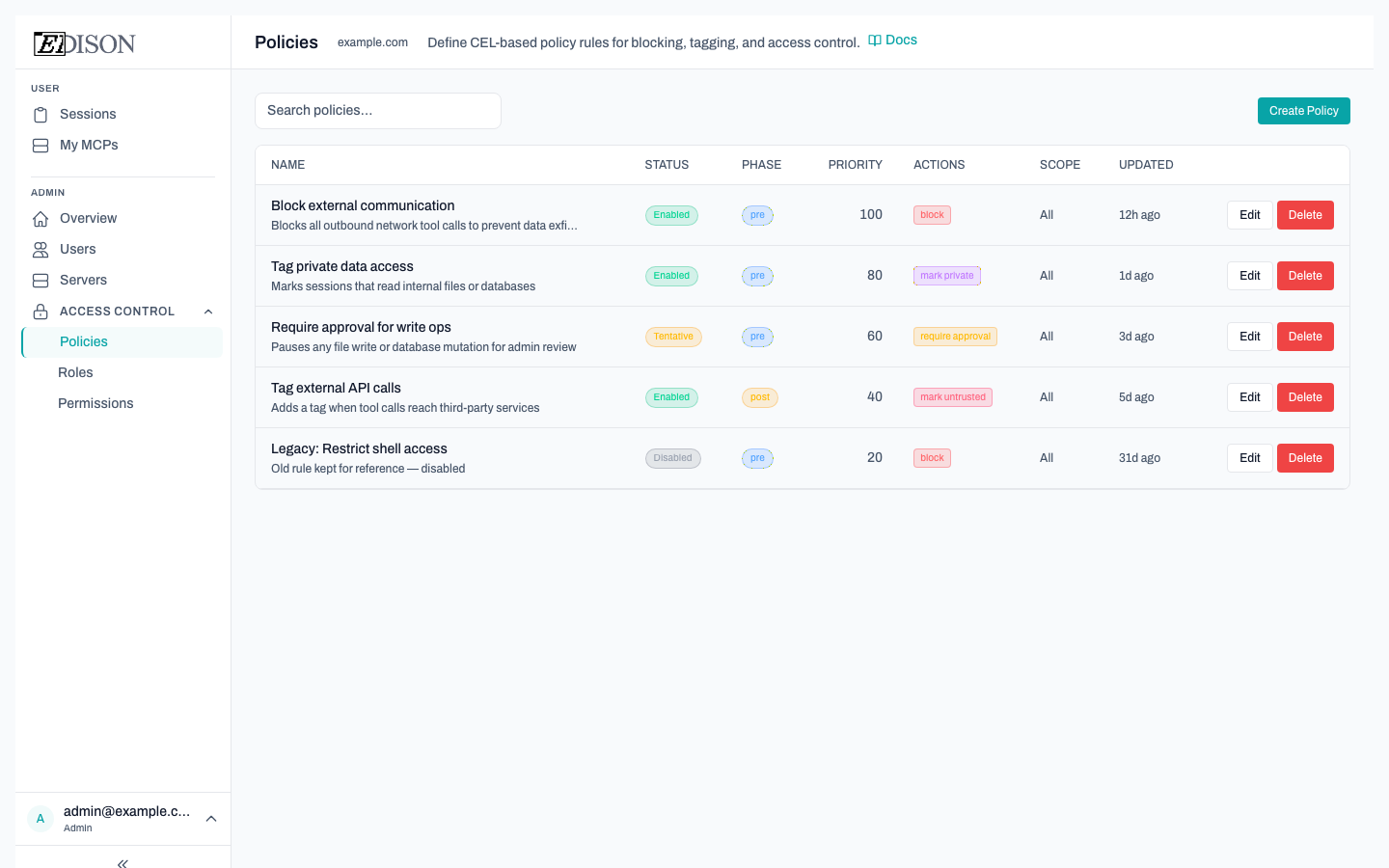
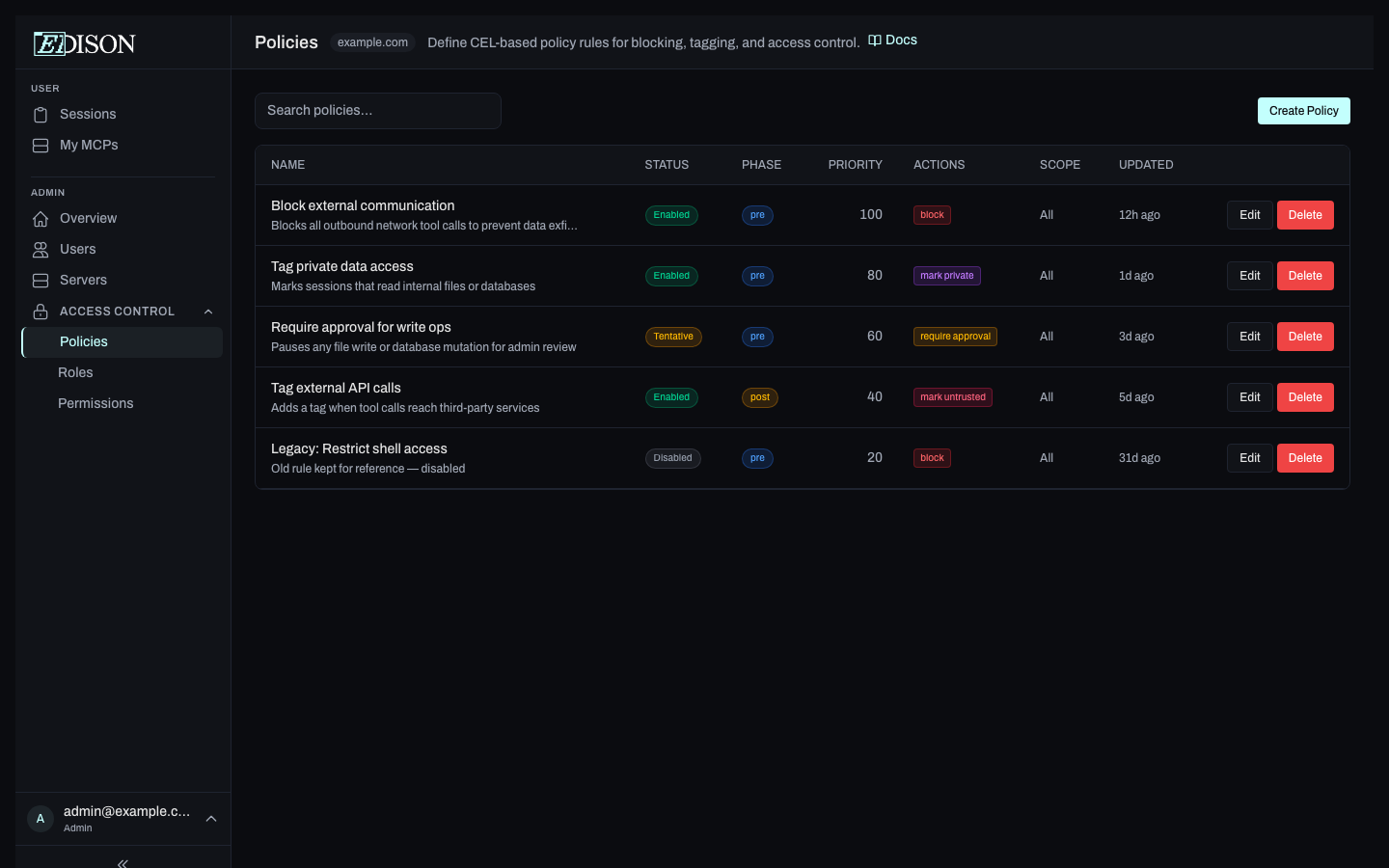
- Left sidebar - list of all rules, grouped by status, with a search box.
- Right panel - details for the selected rule.
The summary strip at the top of the sidebar shows counts of enabled, tentative, and disabled rules at a glance.
Rule Statuses
| Status | Meaning |
|---|---|
| enabled | Rule is active and enforced on every matching tool call. |
| tentative | Rule is evaluated but only logged - actions are not applied. Useful for testing a new rule safely. |
| disabled | Rule is stored but never evaluated. |
Rule Phases
Each rule runs in one of two phases:
| Phase | When it runs | Blocking behavior |
|---|---|---|
| pre | Before the tool call executes. | Prevents execution. |
| post | After the tool call completes; the tool's result is available in the expression. | The call has already run - the result is replaced with an error before returning to the AI, preventing exfiltration of sensitive output. |
CEL Expression Context
Rules are written in CEL (Common Expression Language). Expressions evaluate against four top-level objects representing the current tool call:
| Variable | Fields | Notes |
|---|---|---|
principal | user_id, email, roles | The user making the call. roles is a list of their custom role names. |
resource | type, name, server | What's being called. type is "tool", "resource", or "prompt". |
tool | args, input_schema, output_schema, result | result is only populated in post phase. |
session | has_private_data_access, has_untrusted_content_exposure, has_external_communication, highest_acl_level, tool_history, tags | Current session state, including the three Lethal Trifecta flags. |
If the expression evaluates to true, the rule's actions are applied.
resource.server == "github" && resource.name == "delete_branch" &&
tool.args.branch == "main"
Built-in functions
| Function | Returns | Description |
|---|---|---|
pii_detect(value, [categories]) | bool | true if PII in any of the listed categories is found anywhere within value (searched recursively, including nested fields). Categories: "EMAIL", "API_KEYS", "PHONE", "CREDIT_CARD". |
Pair pii_detect on tool.args with a block action to stop an agent from sending sensitive data out through a tool. Scope the rule to your external-communication servers so detection stays off the hot path elsewhere.
pii_detect(tool.args, ["CREDIT_CARD", "API_KEYS"])pii_detect fails open: if the detector errors, the expression evaluates to false (the rule does not fire), so a detector hiccup never blocks legitimate traffic. It is defense-in-depth layered on the always-on Lethal Trifecta guard. Prefer high-precision categories (CREDIT_CARD, API_KEYS) for blocking - EMAIL and PHONE appear in many legitimate calls (a recipient address is an email), so blocking on them is usually too broad.
Detection runs on the arguments before any Edison PII tokens are restored, so it catches raw PII the agent composed directly. Values that re-enter as an Edison token (from a prior redacted tool result) are opaque at this stage; those exfiltration paths are covered by the Lethal Trifecta guard instead. pii_detect is most meaningful in the pre phase on tool.args.
Actions
| Action | Effect |
|---|---|
block | Prevents the tool call from executing and returns an error to the AI. |
mark_private | Flags the session as containing private data. |
mark_untrusted | Flags the session as containing untrusted external content. |
mark_write | Flags the session as having performed a write operation. |
set_acl | Sets the ACL level of the session (PUBLIC, PRIVATE, or SECRET). |
add_tag | Adds a key-value tag to the session for filtering and auditing. |
allow_override | Explicitly permits the call even if other rules would block it. |
Rule Scope
Rules can be scoped to specific principals and resources:
- Principal scope - Target all users globally, specific roles, or specific users.
- Resource scope - Target specific servers, element types (tools/resources/prompts), or name patterns.
Rules with no scope apply to all principals and resources.
Priority and Overrides
When multiple rules match the same tool call, every matching rule's actions apply. Priority governs how block and allow_override interact:
- A
blockis cancelled only if a matchingallow_overriderule has equal or higher priority. - Otherwise the block wins.
| Rules matching | Priorities | Outcome |
|---|---|---|
block + allow_override | 100 vs. 100 | ✅ Allowed (override ≥ block) |
block + allow_override | 100 vs. 99 | ❌ Blocked (override < block) |
block alone | any | ❌ Blocked |
Non-block actions (mark_*, set_acl, add_tag) apply whenever their rule matches and are not affected by this resolution.
Creating a Policy
- Click Create Policy in the left sidebar.
- Choose a template from the template picker, or start from scratch.
- Fill in the rule name, CEL expression, phase, priority, actions, and scope.
- Save the rule.
Testing Rules Before Enabling
The rule editor has an evaluate panel that runs your CEL expression against synthetic context - principal, resource, tool args, and session flags - without saving the rule. Use it to confirm the expression matches the cases you expect and to see which actions would fire.
For a gentler rollout against real traffic, save the rule with status tentative. Matches are logged server-side as ⚠️ TENTATIVE match - would apply actions: ...; there is no dedicated dashboard view for tentative hits today, so check server logs or your SIEM. Promote the rule to enabled once you're confident.
Editing and Deleting
Select a rule in the sidebar, then click Edit or Delete in the detail panel.